How do I print double-sided when my printer does not have a duplex unit?
Applies To
Description
If you need to print a two-sided document and your printer doesn't have an automatic duplexing unit, follow the manual process for your operating system below.
Solution
Windows
- Open the document you want to print, then press Ctrl+P (or select File > Print).
-
Open the printer's own settings from the print dialog — look for a Printer Properties, Preferences, or similar button or link.
Note: Depending on the application, you may see a simplified Windows print dialog first, without direct access to the printer's own settings. If so, look for a More settings option — selecting this usually opens the full printer driver settings.
- Click the Main tab.
-
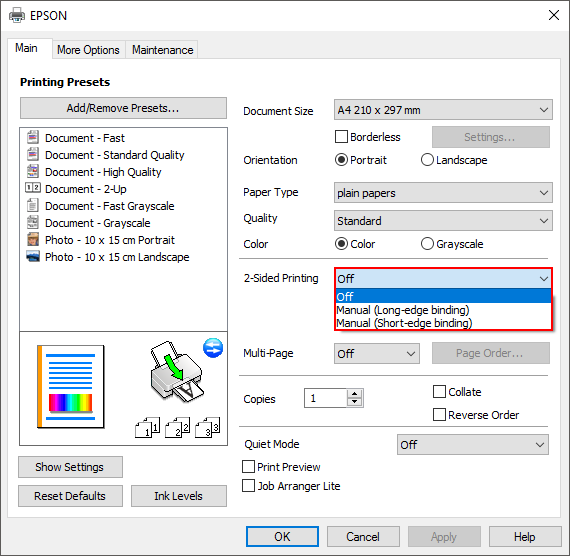
Click the drop-down menu next to 2-Sided Printing.
-
Select either Manual (Long-edge binding) or Manual (Short-edge binding).


What each 2-Sided Printing option does:
Option What It Does Off Prints on one side. Manual (Long-edge binding) Prints on both sides of the paper manually, to bind along the long edge. Manual (Short-edge binding) Prints on both sides of the paper manually, to bind along the short edge. Note: Available settings differ depending on the product model.
- Click OK.
- Print your document.
-
Once the first side prints, a message box appears.
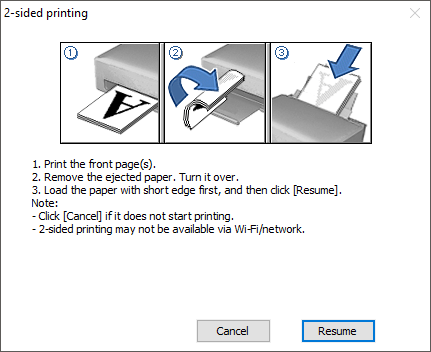
- Remove the printed page from the output tray.
- Turn the page over so the printed side faces down.
- Reload it into the paper feeder or tray, printed side down.
-
Click Resume.
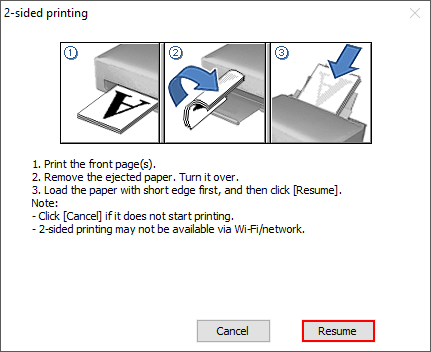
- The second side then prints.
Tip: The steps above apply this setting to the document you're currently printing. If you want manual 2-sided printing to be the default for every print job from this printer, set it via the Devices and Printers folder instead — right-click your printer icon, select Printing Preferences, then follow the same Main tab steps above. See KA-01047 if you need help opening this folder.
macOS
- Click File > Print.
- If shown, click Show Details.
-
From the Pages to Print drop-down, select Odd Pages Only.
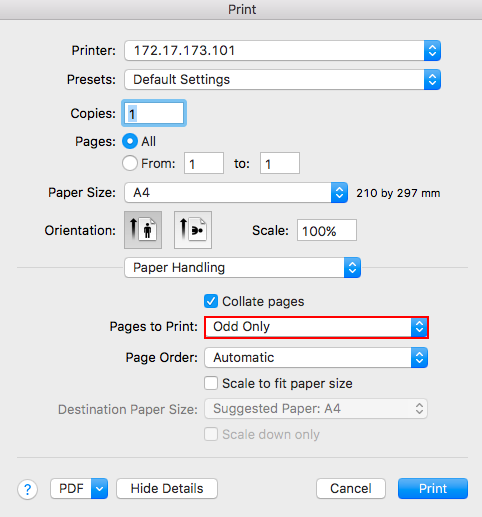
- Click Print.
- Once these pages print, reload them into the paper feeder or tray, printed side down.
- Click File > Print again.
- If shown, click Show Details.
-
From the Pages to Print drop-down, select Even Pages Only.
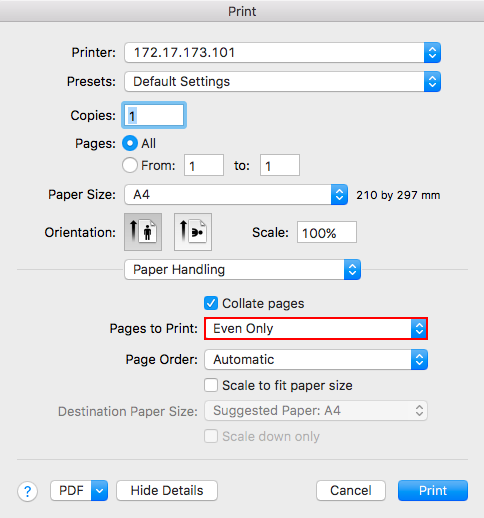
- Click Print.
