When scanning film, striped (newton) rings or blur appears in some of the scanned images. Why is this?
Applies To
Description
Newton rings are a ring-shaped interference pattern that can appear when film isn't held flat against the scanner glass. On models using a film area guide, this can happen because the transparent media isn't secured in a proper film holder.
Solution
-
Make sure the film is loaded with the shiny base side facing down.
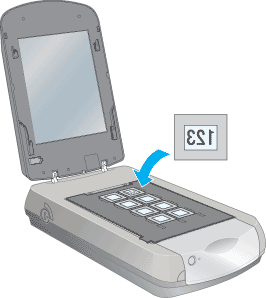
-
If using a 35mm film strip, medium, or large format film holder: place the cover(s) over the film and press down until they click, then press down along all edges to secure them fully.
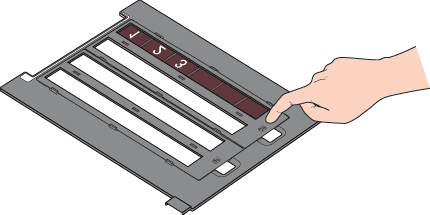
- Preview the image again, then rescan.
-
If rings persist, try placing the film with the base side facing up instead (the image will appear mirrored when previewed correctly base-side-up).
- Use Thumbnail Preview — Manual mode in EPSON TWAIN
 , or Home/Professional Mode in EPSON Scan
  .
. - Click the Mirroring icon in the Preview window to flip the previewed image back to the correct orientation.
- Use Thumbnail Preview — Manual mode in EPSON TWAIN
Note: On Perfection 4990 Photo, V700 Photo, and V750 Pro models using the film area guide (rather than a dedicated holder), Newton rings can appear because the film isn't held flat to the glass. V750 Pro users can use the Fluid Mount Accessory to avoid this (also available as an optional accessory for the V700 Photo).
